
If you plan to create a Facebook Page, access Meta Business Manager, or connect your WhatsApp Business API with Wbotz, a verified Facebook account is mandatory.
This guide walks you through the entire process—from sign-up to verification—in simple, clear steps. No technical background needed.
Why You Need a Facebook Account
Your Facebook account represents you as an individual on Meta’s ecosystem. It acts as the primary login through which you can:
Create and manage your Facebook Page
Access Meta Business Suite and Meta Business Manager
Verify your business identity
Grant access to team members, agencies, or partners like Wbotz
Create and manage Meta Developer apps required for WhatsApp API
💡 Think of your Facebook account as your Meta identity key—everything else builds on top of it.
Step-by-Step: Creating Your Facebook Account
Step 1: Open Facebook
Open a trusted web browser (Chrome, Safari, Edge) or the official Facebook mobile app and visit:
👉 https://www.facebook.com
Click Create new account to begin.
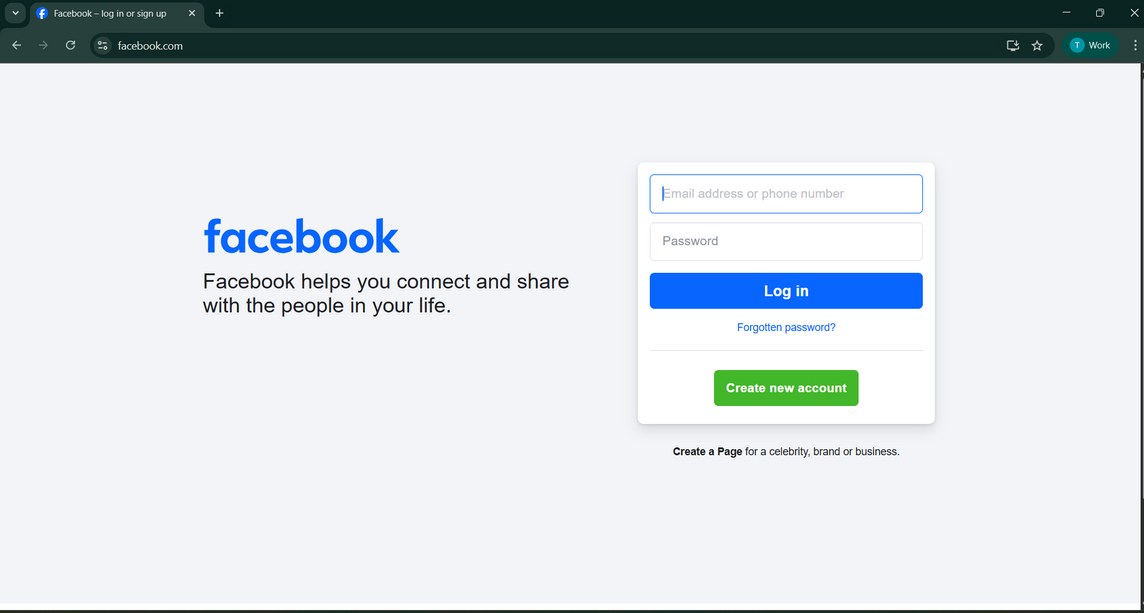
📝 Tip: Always use the official Facebook website or app. Avoid third-party links to prevent account issues.
Step 2: Enter Your Basic Details
You’ll see a sign-up form asking for your personal information. Fill this in carefully:
First Name & Last Name: Use your real name (as per ID or official records)
Email or Mobile Number: Use an active contact you personally control
Password: Choose a strong password
Date of Birth: Enter your real date of birth (used for age verification)
Gender: Select the appropriate option
Click Sign Up once done.
📝 Tip: Use a personal email address, not a shared or company email. This ensures long-term access and ownership.
Step 3: Verify Your Email or Phone Number
Facebook will send a one-time verification code (OTP) to the email or mobile number you provided.
Check your inbox or SMS
Enter the code on Facebook
Click Confirm or Continue
If the code doesn’t arrive, wait a minute and click Resend.
Once verified, your Facebook account is officially active.
Step 4: Complete Security Checks (If Asked)
In some cases, Facebook may ask for additional checks such as:
Captcha verification
Activity confirmation
Profile setup prompts
This is common, especially if you’re signing up from a shared network or office location. Follow the on-screen instructions to proceed.
Step 5: Set Up Your Profile (Optional but Recommended)
After account creation, Facebook may guide you through profile setup. You can skip parts, but adding basic details helps establish account credibility.
You may add:
Profile picture (your photo or business logo)
Cover photo
Basic info like city or workplace (optional)
Tip: A complete profile is less likely to face restrictions later.
Step 6: Review Privacy & Security Settings
Go to Settings & Privacy from the top-right menu to secure your account.
Here, you can:
Control who can find you using email or phone number
Decide if your profile appears on search engines
Manage tagging and friend request settings
📝 Tip: If this account is primarily for business use, keep personal details private.
Step 7: Confirm Everything Is Ready
Once setup is complete, you’ll land on your Facebook Home page.
From here, you can:
Create a Facebook Page
Access Meta Business Manager
Connect tools like Instagram and WhatsApp API via Wbotz
Bookmark facebook.com or save your credentials securely for easy access.
Understanding Your Facebook Identity
Your Facebook profile acts as your personal gateway to all Meta products. With one account, you can manage:
Multiple Facebook Pages
One or more Meta Business Portfolios
Instagram Business profiles
WhatsApp Business API accounts connected through Wbotz
⚠️ Important: Meta allows only one personal Facebook account per individual. Creating multiple accounts can lead to suspension.
Common Issues and How to Fix Them
Issue | Why It Happens | What You Can Do |
Email or phone already in use | You already have an account | Try logging in instead of creating a new one |
OTP not received | Network delay or spam filtering | Wait, check spam, or click “Resend” |
Account locked or disabled | Security or policy checks | Visit Facebook Help Center to appeal |
Captcha keeps repeating | Browser or cache issue | Clear cache or try Incognito mode |